
How to Find the Correct OBS Plugin Folder
A practical guide to finding the correct OBS plugin folder, matching the real OBS install path, and avoiding path mistakes that keep plugins from loading.
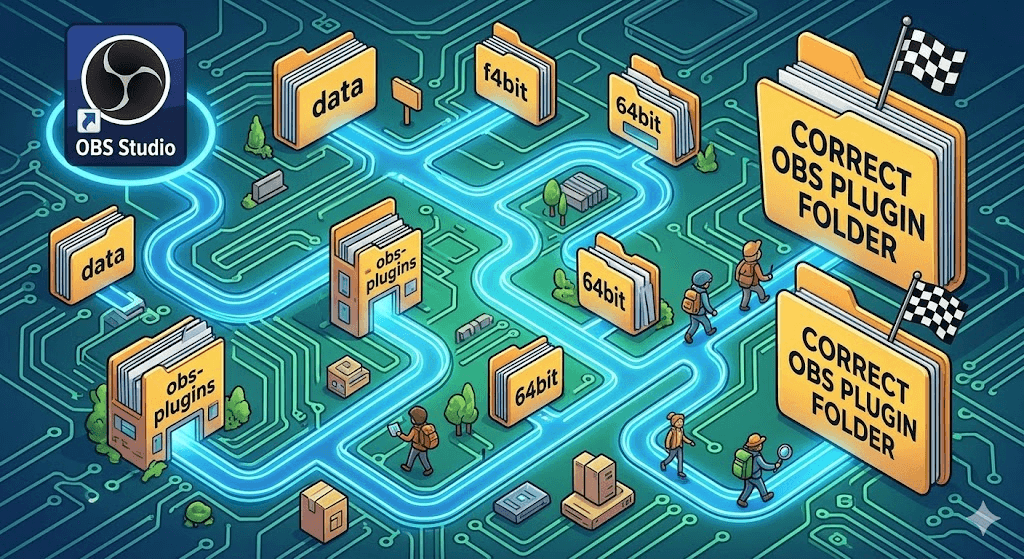
Why OBS Plugin Folder Mistakes Happen
Path mistakes are one of the most common reasons a plugin does not show up after installation. Users often follow outdated instructions, work from an older plugin layout, or forget that their OBS setup may not be using the default install path.
Simply downloading a plugin is not the same thing as placing it into the exact OBS plugin folder the active OBS installation is actually reading.
Standard OBS Install vs Portable Install
A standard OBS install usually follows the operating system's normal application layout. A portable install is different because OBS runs from a chosen folder and may read plugins relative to that portable environment instead of the usual system location.
The important point is not to memorize one path from an old forum post. It is to match the actual OBS install path on the machine in front of you.
How to Confirm the Correct OBS Plugin Folder
- 1Confirm whether the machine is using a normal system install or a portable OBS install.
- 2Identify which OBS application the operator actually launches for production.
- 3Check the plugin instructions and compare them against that real OBS environment.
- 4Verify the destination path before copying files so the plugin is placed where OBS is reading from.
If the plugin uses a newer layout than the guide you found, stop and verify before copying anything. Mixing old and new plugin layouts is a common source of missing plugins and confusing leftovers.
What Happens When OBS Plugin Files Go in the Wrong Place
- The plugin does not appear inside OBS
- Menu entries or actions are missing
- A feature seems uninstalled even though files were downloaded
- Operators keep troubleshooting the wrong issue because the files never reached the active OBS install
A Safer Way to Handle Plugin Paths
Before changing files, confirm the real OBS path, confirm the plugin build, and verify that the instructions match the version of OBS you are maintaining. That is a more practical habit than relying on old screenshots or memory.
For teams that want less guesswork, OBS Plugin Installer helps surface install details, OBS environment detection, and plugin notes in one place so path-related mistakes are easier to avoid. For the full install workflow, continue to how to install OBS plugins.
Related Resources
Explore more pages about OBS control, mobile production workflows, and livestream operations.
How to install OBS plugins
Use the broader install guide after you confirm the right plugin destination.
Read pageOBS plugin setup
Review setup planning for shared systems, rollouts, and plugin path checks.
Read pageOBS plugin compatibility
Check compatibility before copying files into any OBS environment.
Read pageWant Fewer Plugin Path Mistakes?
OBS Plugin Installer helps detect the OBS environment, surface plugin install details, and reduce path-related mistakes before files are copied.