
How to Install OBS Plugins
A practical guide to installing OBS plugins, avoiding common mistakes, and choosing a safer setup flow for OBS Studio.
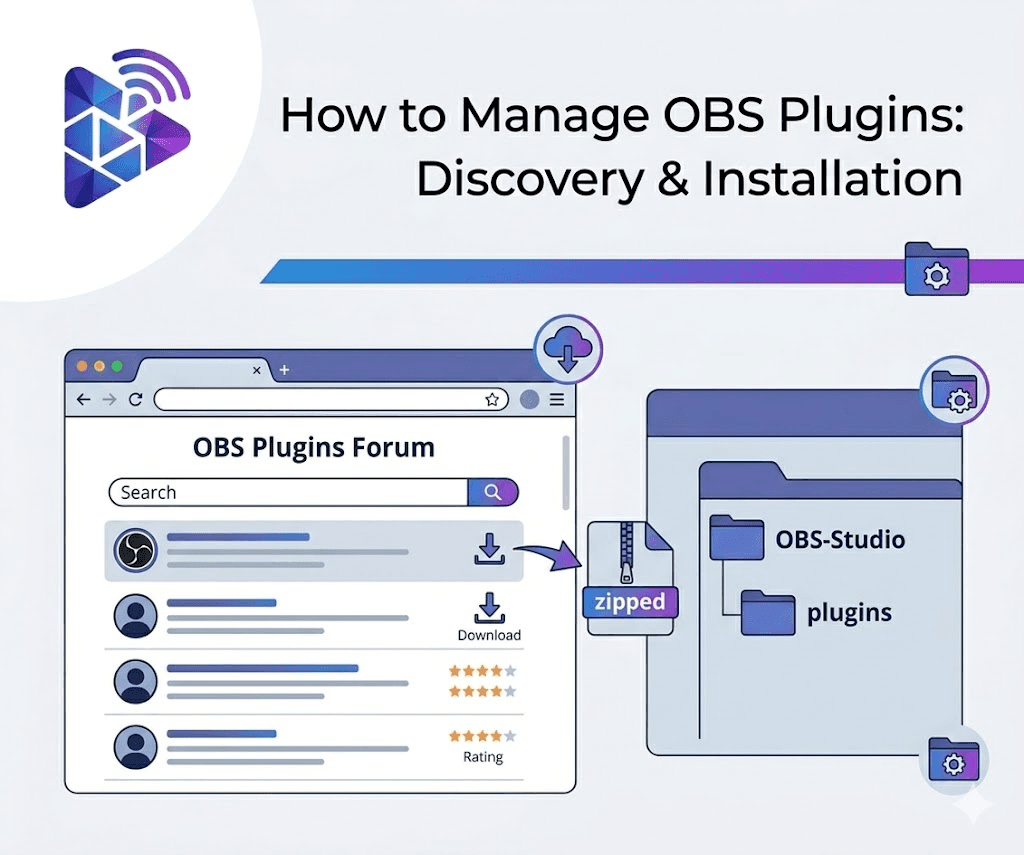
What Manual OBS Plugin Installation Usually Involves
If you searched for how to install OBS plugins, the process usually starts with finding the right plugin package, confirming the correct OBS plugin folder, and making sure the build matches your current OBS Studio version before you copy anything.
- 1Find the plugin online.
- 2Download the correct archive or package.
- 3Extract the files.
- 4Copy them into the correct OBS directory.
- 5Restart OBS Studio and check whether the plugin loads.
Common OBS Plugin Installation Mistakes
- Downloading a build that does not match the current OBS version
- Placing files in the wrong folder
- Missing an extra install step or dependency
- Updating OBS before checking whether the plugin still works
A Safer Way to Install OBS Plugins
Installing OBS plugins manually often sounds simple until something goes wrong. Users have to find the right download, check whether it matches their OBS version, unpack the files correctly, and place them in the proper plugin folders. That process creates a lot of room for mistakes. A wrong build, an outdated plugin, or files copied into the wrong location can lead to broken features, failed plugin loads, or unstable OBS setups at the worst possible time.
A better installation workflow reduces that risk before any files are touched. It should first check the installed OBS version, identify the correct plugin directory for the system, and make compatibility details visible upfront. Users should be able to understand what they are installing, whether it matches their environment, and what extra steps may still be required. That kind of visibility turns plugin setup from trial-and-error into a more reliable maintenance process.
That is the role of Plugin Installer for OBS. It is designed to give OBS users a safer and more organized way to discover, install, and manage plugins. Instead of jumping between websites, zip files, folders, and guesswork, users get a central catalog, clearer install notes, better compatibility awareness, and a workflow that is easier to maintain over time. For creators, church livestream teams, and production operators who depend on OBS Studio for real work, that means fewer avoidable setup problems and a cleaner path to keeping plugin-based workflows stable.
Next Steps After You Install OBS Plugins
Manual installation becomes more risky when OBS is used for church livestreams, studio workflows, or event production, where plugin failures can disrupt a live session. If you want to avoid the folder guesswork next, read how to find the correct OBS plugin folder, then continue to how to update OBS plugins safely so the plugin stays stable after the first install.
Related Resources
Explore more pages about OBS control, mobile production workflows, and livestream operations.
Plugin Installer for OBS product page
See the product designed to simplify plugin discovery, installation, and maintenance.
Read pageOBS plugin setup guide
Read more about plugin folders, rollout practices, and setup planning.
Read pageHow to find the correct OBS plugin folder
Confirm where plugin files belong before copying anything into OBS.
Read pageWant a Safer Installation Flow?
Plugin Installer for OBS removes much of the manual file handling described in this guide and makes plugin setup easier to maintain.