How to Troubleshoot OBS Plugin Installation Errors
A practical troubleshooting guide for OBS plugin installation errors, missing plugins, version mismatches, and folder placement problems.
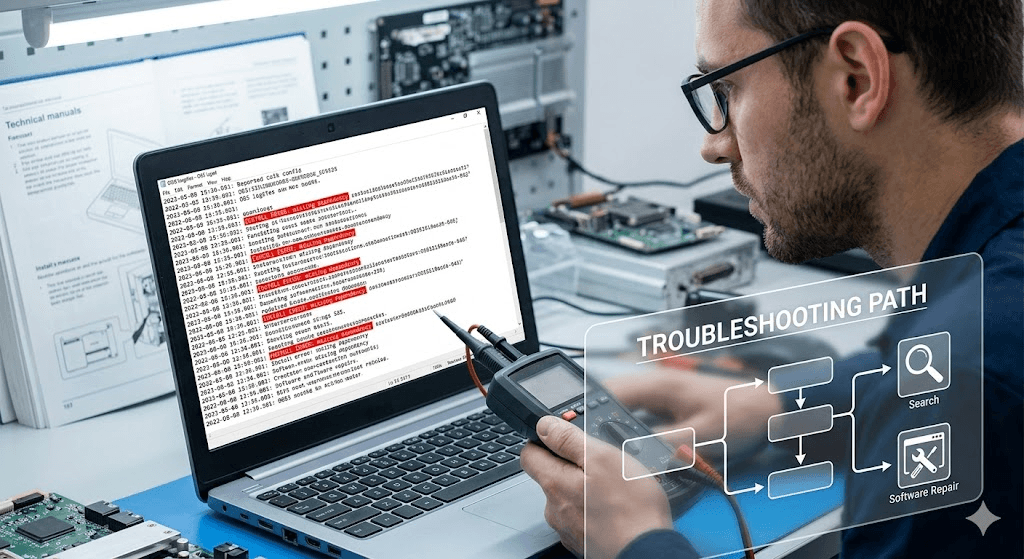
Troubleshooting is easier when plugin state, compatibility, and install details are visible in one workflow.
Common Signs of OBS Plugin Installation Errors
Most OBS plugin install errors show up as missing menu items, plugin load failures, or features that stopped appearing after an install or update.
The plugin does not appear in OBS
A menu entry is missing
The feature does not load or does nothing when selected
OBS shows launch warnings
The plugin worked before but stopped after an update
First Checks to Run When an OBS Plugin Install Fails
1Confirm the OBS version on the machine you are troubleshooting.
2Confirm the plugin version or build you installed.
3Confirm the correct install location for that OBS environment.
4Check whether old plugin files are still present from a previous version.
5Restart OBS fully instead of assuming it reloaded the plugin on its own.
6Test in a calm environment before going live.
If the machine is already stable enough to keep a service or stream running, do not troubleshoot mid-service or mid-stream. Keep the production moving and return to the plugin problem afterward.
Security Screens You May See During Installation
Some OBS plugin install problems start before the plugin itself is even installed. Windows and macOS can show security screens when you open a fresh installer, especially for newer independent desktop apps.
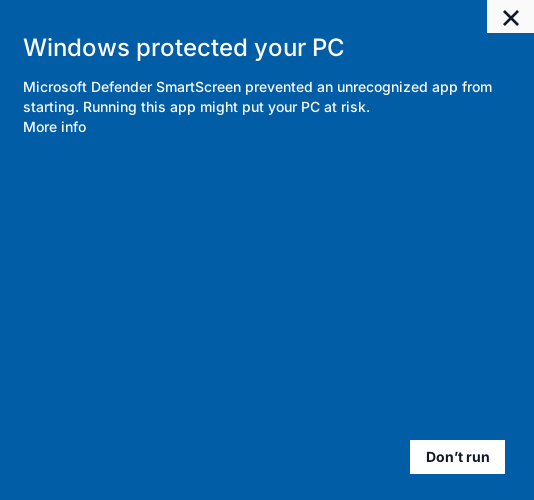
If Windows shows Windows protected your PC, click More info and then Run anyway. If Windows asks for administrator permission after that, approve the prompt and return to the installer when the elevated step closes.
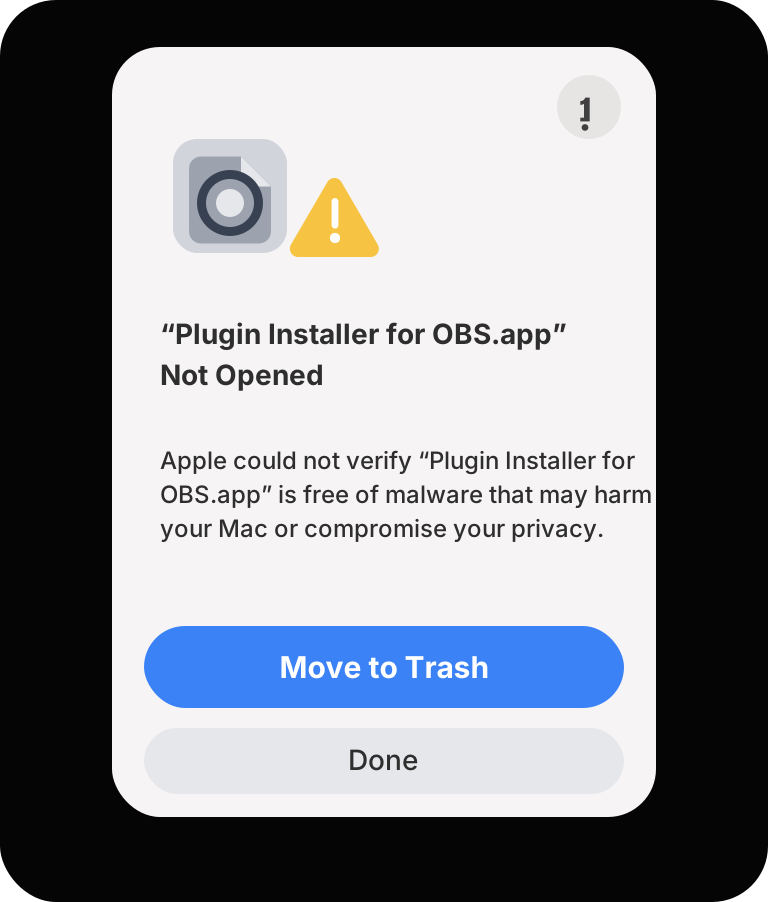
If macOS says the app cannot be opened or verified, open Terminal and run xattr -dr com.apple.quarantine "/Applications/Plugin Installer for OBS.app", then launch the app again from Applications.
If macOS blocks the app, open Terminal and remove the quarantine attribute before launching again.
If macOS says the app cannot be opened
This macOS verification screen can appear when the app has not been approved on that Mac yet. Open Terminal, run the command below, and then launch the app again from Applications.
Open Terminal.
Run xattr -dr com.apple.quarantine "/Applications/Plugin Installer for OBS.app".
Open Plugin Installer for OBS again from Applications.
xattr -dr com.apple.quarantine "/Applications/Plugin Installer for OBS.app"
Use the steps below to continue when Windows shows the SmartScreen warning.
If Windows says “Windows protected your PC”
This SmartScreen screen can appear because the installer is new or has not built enough reputation with Windows yet. It does not automatically mean the installer is unsafe.
Click "More info".
Click "Run anyway".
Continue the installer.
Version and Compatibility Problems
One of the most common causes of a failed install is a version mismatch. The plugin build may not support the OBS version on that machine, or the plugin may require a newer build after OBS changed.
Before changing more files, verify compatibility first. That single check often explains why a plugin is missing or why OBS shows a new warning after startup.
OBS Plugin Folder and File Placement Problems
Some installs fail because the files were placed in the wrong folder, copied into the wrong OBS environment, or mixed with leftover files from an older version. That is especially common on systems with custom paths or portable installs.
When to Remove and Reinstall an OBS Plugin Cleanly
If the plugin still fails after the first checks, a clean reinstall is often safer than piling more guesses on top of a broken state. Close OBS, remove the plugin files from the correct location, verify the right build, then reinstall cleanly.