
How to Update OBS Plugins Safely
A practical guide to updating OBS plugins safely, checking compatibility first, and avoiding broken plugin workflows on production systems.
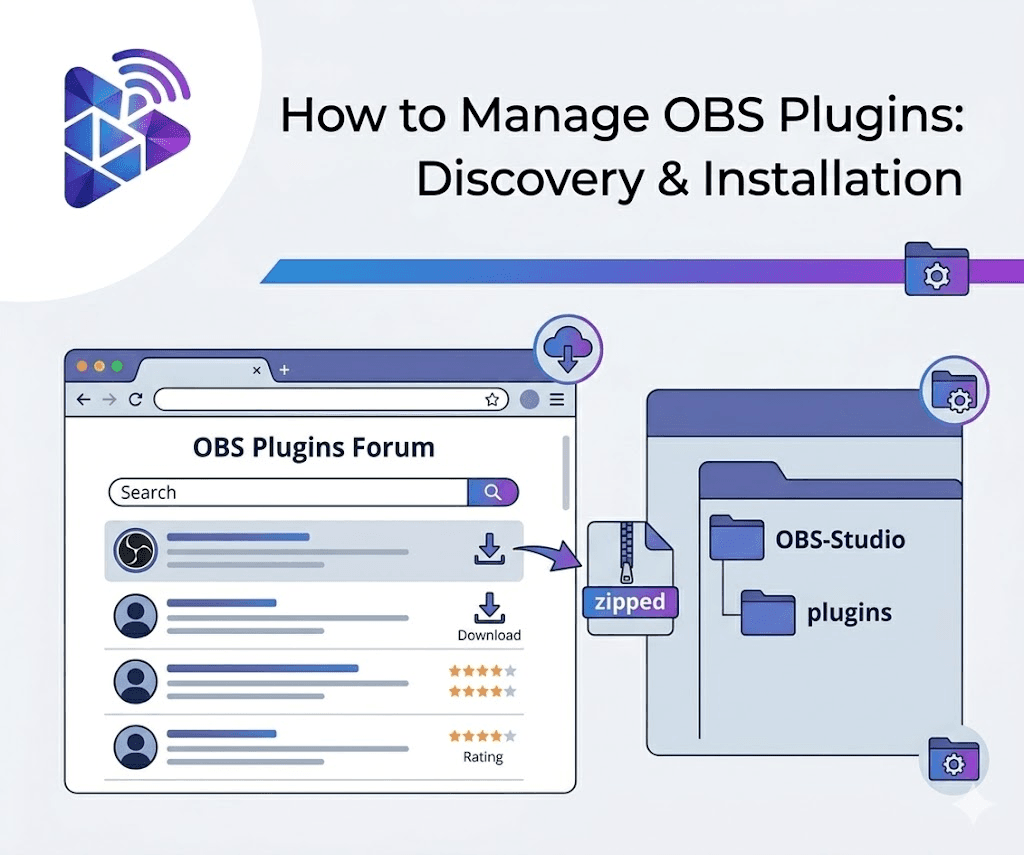
What to Check Before Updating OBS Plugins
If you need to update OBS plugins safely, start by checking whether the plugin still supports your current OBS Studio version and whether the machine can tolerate downtime for testing.
- Which OBS version is currently running on the machine
- Whether the plugin developer lists support for that OBS version
- Which plugin build matches the operating system and OBS release you use
- Whether the current setup is on a production machine that should not be changed right before a live stream
Plugin updates can fail for simple reasons: the OBS version changed, the wrong build was selected, or older files were only partially replaced. Checking compatibility before changing files is one of the easiest ways to avoid turning a working setup into a broken one.
Why OBS Version Changes Affect Plugins
Plugins are built against OBS versions and their supporting files. If OBS changes in a way the plugin does not expect, the plugin may stop loading, lose menu items, or fail when a scene or action depends on it.
That is why update timing matters. Production machines should avoid last-minute updates before a live stream, church service, or client session unless there is a clear reason and time to test afterward.
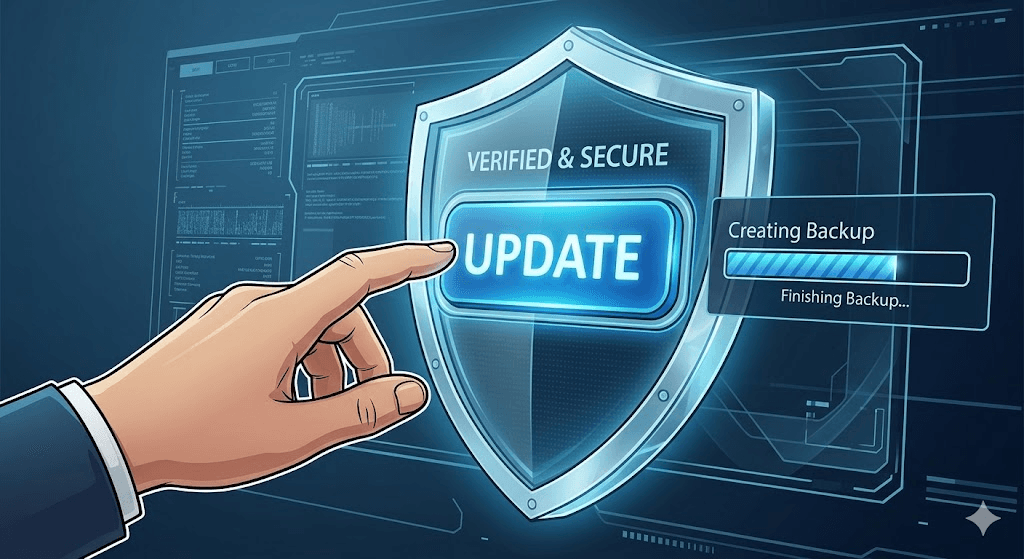
A Safe OBS Plugin Update Workflow
- 1Document the current OBS version and plugin version before changing anything.
- 2Read the plugin release notes or compatibility notes for the build you plan to use.
- 3Confirm you selected the correct build for your OBS version, operating system, and install type.
- 4Close OBS fully before replacing files so old files are not left half in use.
- 5Replace the plugin cleanly instead of mixing new files with an older install.
- 6Restart OBS and test in a calm environment before the next live event.
If you manage multiple plugins, it also helps to review the broader plugin management workflow.
What to Test After Updating OBS Plugins
- Plugin loads correctly
- Menu or plugin items appear as expected
- Scenes, sources, and actions still work
- No new warnings or crashes appear when OBS starts or when the plugin is used
This short checklist catches the most common problems quickly and is worth running before the next rehearsal or stream.
Common OBS Plugin Update Mistakes to Avoid
- Updating OBS and multiple plugins at the same time without keeping track of what changed
- Choosing a build based only on the plugin name instead of checking compatibility details
- Copying new files over old ones without removing leftover files from previous versions
- Troubleshooting under live production pressure instead of testing ahead of time
If you want a cleaner way to review plugin compatibility, install notes, and maintenance status before touching files, OBS Plugin Installer gives users a more organized workflow than manually checking websites, folders, and release archives one by one. If a plugin already broke, move next to what to do when an OBS plugin stops working after an update.
Related Resources
Explore more pages about OBS control, mobile production workflows, and livestream operations.
How to install OBS plugins
Review the original install workflow before replacing plugin files.
Read pageHow to manage OBS plugins
Track installed plugins, update readiness, and ongoing maintenance tasks.
Read pageOBS plugin compatibility
Check the version matching issues that most often break plugin updates.
Read pageWant an Easier Plugin Update Workflow?
OBS Plugin Installer helps users review plugin compatibility, installation notes, and plugin management details in one place before making changes.