Windows
- Windows 10 and 11
- 64-bit systems
- Intel and AMD processors
This installer is currently unavailable. Please try again later.
Download Plugin Installer for OBS for Windows, macOS, and Linux to install OBS plugins more clearly, keep plugins updated, and manage plugin compatibility in one desktop app.
The full installer list is available below.
Latest stable build • Requires OBS Studio 30.0+
Manual plugin setup is slower and easier to break. Plugin Installer for OBS keeps installs faster, safer, and easier to manage.
| Feature | Manual Installation | Plugin Installer for OBS |
|---|---|---|
| Setup Time | 5–10 mins | 1-click |
| Updates | Check GitHub daily | Automatic |
| Compatibility | Risk of OBS crashes | Pre-install health checks |
| Management | Hunt for hidden folders | Unified dashboard |
| Risk | High – easy to break OBS | Safe – verified packages |
Every installer request is routed through our secure download API. We detect your operating system, prioritize the best match, and still keep alternate platform options visible.
This installer is currently unavailable. Please try again later.
This installer is currently unavailable. Please try again later.
This installer is currently unavailable. Please try again later.
The installer needs a modern OBS Studio build and a stable network connection for browsing and downloading plugin assets.
OBS Studio
OBS Studio
Version 30.0 or later is recommended for best compatibility.
Operating system
Operating system
Windows 10+, macOS 12+, or a modern Linux distribution.
Network
Network
Internet access is required for plugin browsing and downloads.
Follow these steps if you are installing Plugin Installer for OBS for the first time and want a simple OBS plugin installation guide with the expected Windows and macOS warning screens explained.
Pick Windows (.exe), macOS Apple Silicon (.dmg), macOS Intel (.dmg), or Linux (.AppImage / .deb) before starting the install.
Run the downloaded file and continue with the normal install flow for your operating system.
If Windows shows "Windows protected your PC", click "More info" and then click "Run anyway" to continue.
Finish the installer, open the app, and wait for any system prompt to close before returning to the main window.
On first launch, the app checks common OBS locations and lets you choose the folder manually if your OBS install is in a custom path.
Review plugin details, then install from official plugin sources instead of copying files around by hand.
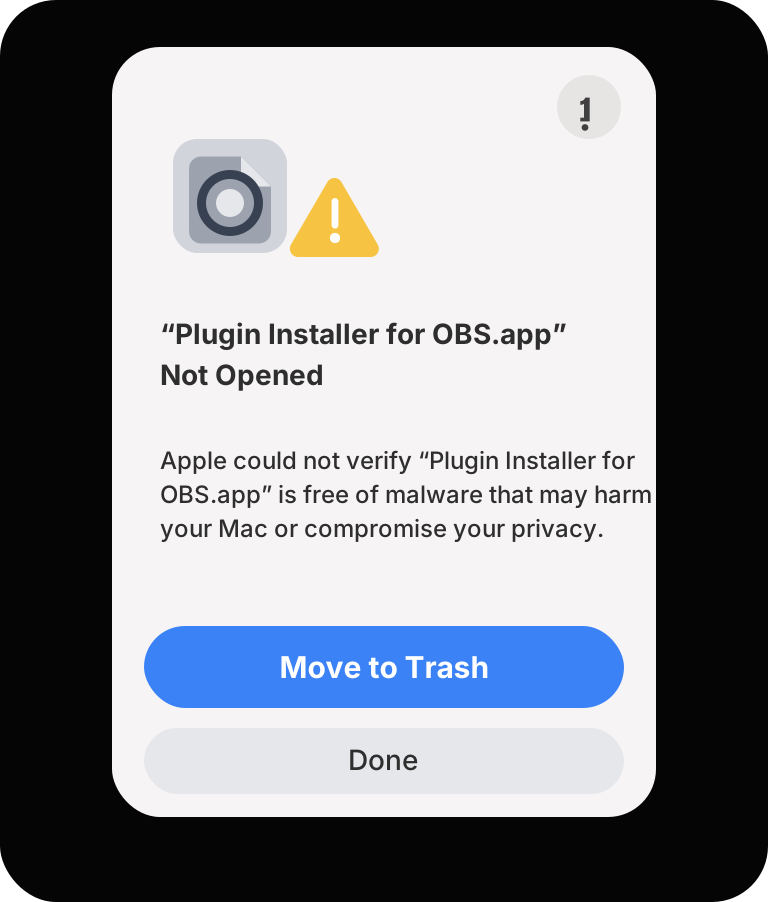
This macOS verification screen can appear when the app has not been approved on that Mac yet. Open Terminal, run the command below, and then launch the app again from Applications.
xattr -dr com.apple.quarantine "/Applications/Plugin Installer for OBS.app"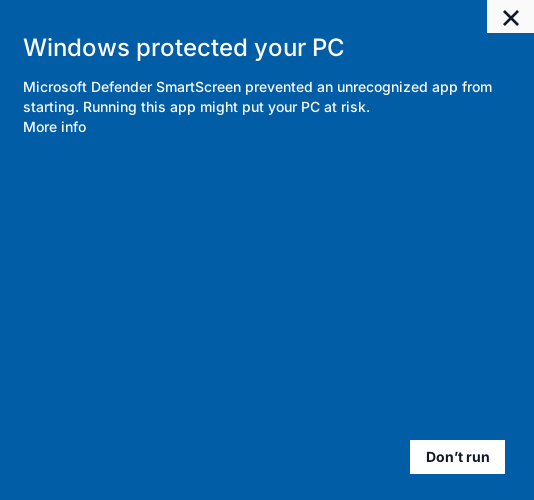
This SmartScreen screen can appear because the installer is new or has not built enough reputation with Windows yet. It does not automatically mean the installer is unsafe.
Follow the OS-specific steps below to install and confirm OBS detection on first launch.
Run the installer and choose a user or system install depending on your setup.
View guideOpen the DMG, move the app to Applications, then approve Gatekeeper if needed.
View guideInstall via package manager, or run the AppImage if you prefer a portable build.
View guideAfter installation, launch the app and let it scan your machine for OBS Studio. The installer will detect your OBS plugin directories and prepare the environment for managed installs.
If you run a portable OBS build or a non-standard install path, you can select the directory manually in the app settings.
Windows SmartScreen can show a warning when the installer is new or not yet fully recognized by Microsoft's reputation system.
That warning does not automatically mean the app is unsafe. It usually appears because Windows has not seen enough installs for that exact file yet, which is common for newer independent desktop apps.
Plugin Installer for OBS downloads plugins from their official sources and does not host plugin files.
Windows can ask for administrator permission when the installer or a plugin setup step needs to write into protected folders such as Program Files or the OBS installation directory.
This is normal for some desktop install workflows. It does not mean the app is frozen. In most cases, the installer is waiting for the elevated step to finish.
You may see this when OBS is installed in a protected system folder, when a plugin uses its own installer, or when Windows requires elevated file access for the selected package.
macOS Gatekeeper can block apps that are new, unsigned, or not yet approved on that machine.
If macOS still keeps the app blocked after you try the normal open flow, open Terminal and run the command below to remove the quarantine attribute from the installed app.
Confirm OBS Studio is installed, then let the app scan again.
If you use a portable OBS build or a custom path, set the OBS folder manually inside the app settings.
Download the latest stable build and start managing plugins in a calmer, more maintainable workflow.