Follow this guide to install Plugin Installer for OBS on Windows 10 or 11. Download the recommended .exe installer first, then use .msi only if your environment requires it.
Use the button above to download the recommended Windows .exe installer.
2
Run the executable
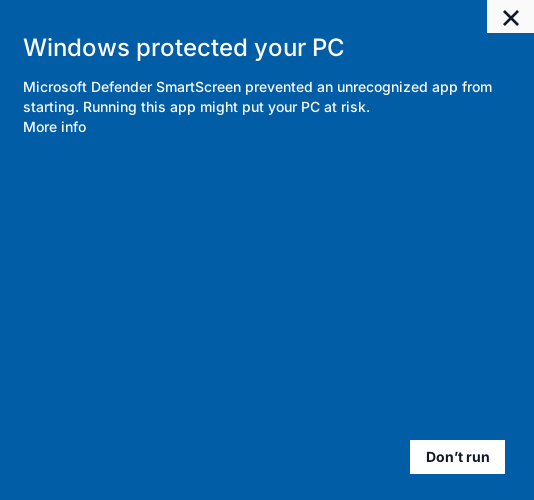
Open the downloaded installer and follow the setup wizard. If Windows shows "Windows protected your PC", click "More info" and then click "Run anyway".
3
Approve any administrator prompt
If Windows asks for administrator permission, approve the prompt so the installer or plugin setup step can write to the correct OBS or system folders.
4
Launch and detect OBS
Open Plugin Installer for OBS. It will scan for OBS Studio and prepare plugin directories automatically.
Windows security and permission screens
If you see "Windows protected your PC", click More info and then Run anyway. If Windows asks for administrator permission after that, approve the prompt and return to the installer once the elevated step finishes.
Use the steps below to continue when Windows shows the SmartScreen warning.
If Windows says “Windows protected your PC”
This SmartScreen screen can appear because the installer is new or has not built enough reputation with Windows yet. It does not automatically mean the installer is unsafe.
Click "More info".
Click "Run anyway".
Continue the installer.
Troubleshooting
Antivirus false positives
Some security tools may flag unknown installers. If needed, add an exception or temporarily disable real-time protection during install.
Why am I seeing an administrator permission prompt?
Windows shows this when the installer or a plugin step needs to write to protected folders such as Program Files or the OBS installation directory. Approve the prompt if you want to continue, then return to the app after the prompt closes.
OBS path not found
If Plugin Installer for OBS can’t detect OBS, ensure OBS is installed normally. For portable OBS installs, select the directory manually in settings.