Plugin Discovery
Browse curated OBS plugins, scripts, tools, and workflow utilities in one catalog.
Installing OBS plugins manually usually means searching multiple sites, checking version notes, unzipping files, and guessing which folder to use.
Plugin Installer for OBS gives users a clearer way to review plugins, download them from their official sources, and run the right install flow without guessing through folders and file paths.
It is a third-party utility for OBS plugin setup. The page below focuses on direct downloads, system requirements, transparency notes, and support links.
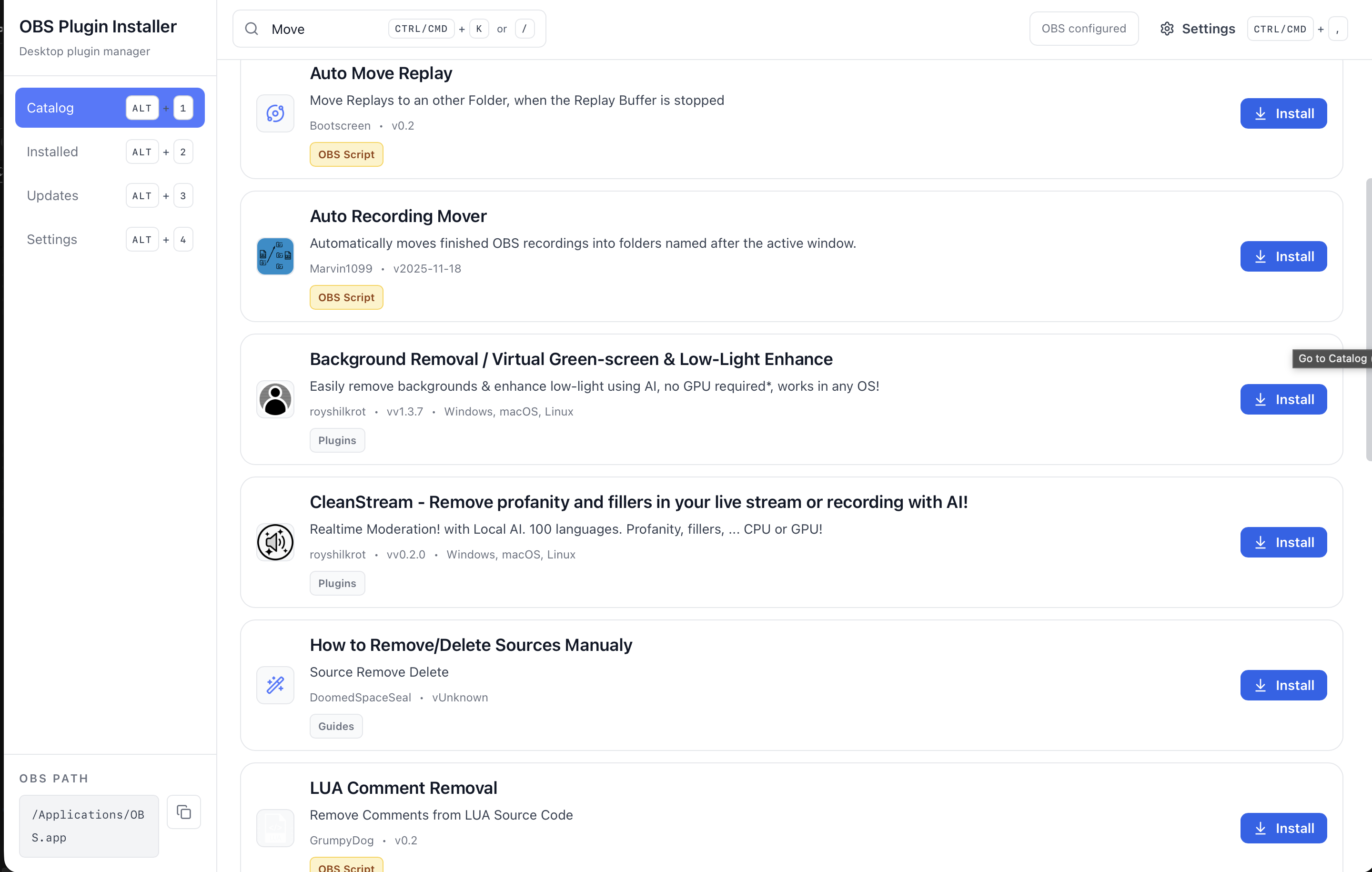
Plugin Installer for OBS focuses on the parts of plugin setup that usually cause problems: finding the right source, checking version compatibility, and keeping installs easier to manage over time.
Browse curated OBS plugins, scripts, tools, and workflow utilities in one catalog.
Download and install compatible plugins directly into OBS without manual file placement.
Detect installed plugins and notify operators when updates are available.
Check plugin support against the installed OBS version to help prevent broken setups.
Use this first-time setup guide if you want a clearer path for how to install OBS plugins safely with Plugin Installer for OBS, including the Windows and macOS screens that can appear during setup.
Pick Windows (.exe), macOS Apple Silicon (.dmg), macOS Intel (.dmg), or Linux (.AppImage / .deb) before starting the install.
Run the downloaded file and continue with the normal install flow for your operating system.
If Windows shows "Windows protected your PC", click "More info" and then click "Run anyway" to continue.
Finish the installer, open the app, and wait for any system prompt to close before returning to the main window.
On first launch, the app checks common OBS locations and lets you choose the folder manually if your OBS install is in a custom path.
Review plugin details, then install from official plugin sources instead of copying files around by hand.
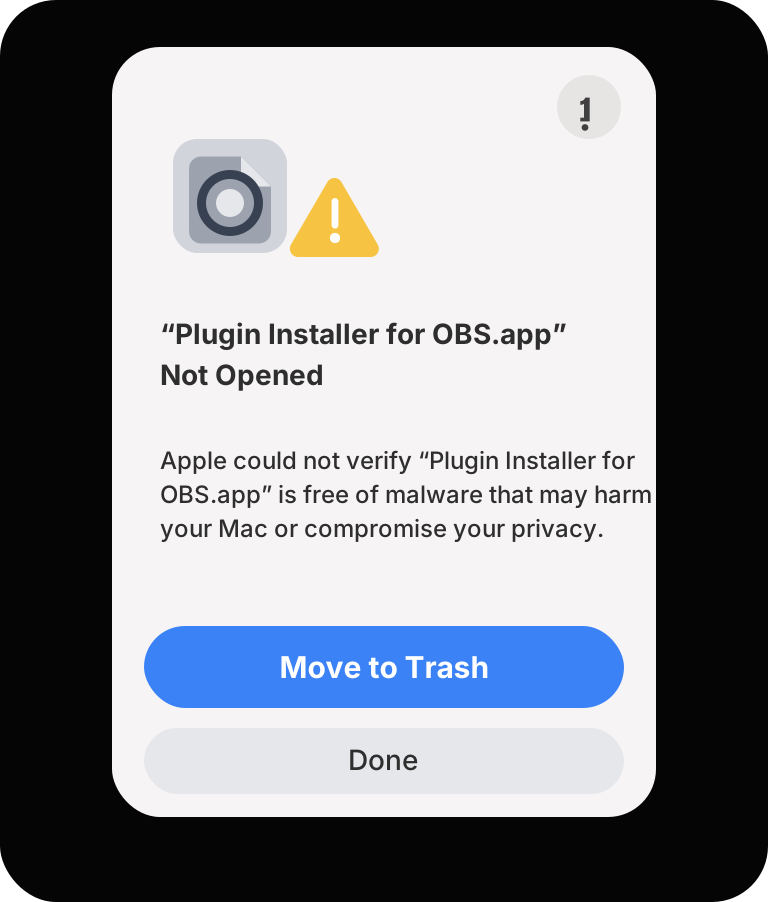
This macOS verification screen can appear when the app has not been approved on that Mac yet. Open Terminal, run the command below, and then launch the app again from Applications.
xattr -dr com.apple.quarantine "/Applications/Plugin Installer for OBS.app"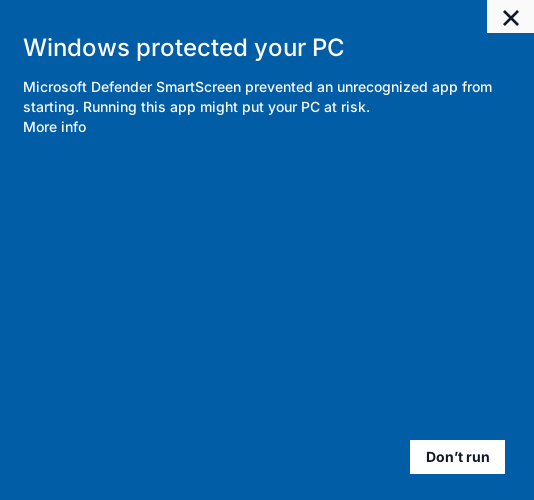
This SmartScreen screen can appear because the installer is new or has not built enough reputation with Windows yet. It does not automatically mean the installer is unsafe.
The goal is to make plugin setup easier to understand without hiding where files come from.
Step 1
Review the plugin name, version notes, and compatibility details before starting the install.
Step 2
The tool pulls plugin files from their official source instead of mirroring or repackaging plugin downloads.
Step 3
If the plugin supports managed installation, the tool handles the install steps. If it needs an official installer, the tool opens the correct package and notes.
Watch the walkthrough if you want to see the install flow, plugin review screen, and the basic setup process before downloading the tool.
What this tutorial covers
Validate these requirements before installation to reduce setup issues and keep plugin management stable in production.
OBS Studio
OBS Studio 30.0+ is recommended for plugin compatibility checks and managed installs.
Operating system
Windows 10+, macOS 12+, or a modern Linux distribution with desktop package support.
Network
Internet connection is required to fetch plugin metadata, releases, and update information.
Use the project links below for source access, issue reports, and installer support.
Most install issues come down to OBS paths, security prompts, or version mismatches.
Confirm OBS is installed, then set the OBS path manually inside Installer settings for portable or custom setups.
If Windows shows "Windows protected your PC", click "More info" and then click "Run anyway" to continue.
If macOS says the app cannot be opened, open Terminal and run xattr -dr com.apple.quarantine "/Applications/Plugin Installer for OBS.app". Then launch the app again from Applications.
Common questions about plugin installation, compatibility checks, and how the utility handles official downloads.
Plugin Installer for OBS is a desktop application that helps users discover, install, update, and manage plugins for OBS Studio.
It acts as a plugin manager for OBS so users can work from one place instead of searching websites, downloading files manually, and copying folders into the OBS installation.
Yes. The app is designed to download the correct package and place files in the correct OBS directories when a managed installation is available.
Some tools still require manual steps, but the app provides clear instructions and file paths when that happens.
Yes. Plugin Installer for OBS can detect installed plugins and track when managed tools have updates available.
This helps users keep OBS systems organized and reduces the chance of running outdated plugin builds.
Yes. The app compares plugin packages against the installed OBS version and surfaces compatibility details before installation.
That helps prevent broken setups caused by installing the wrong version of a plugin or using a build that does not match the current OBS release.
Yes. Plugin Installer for OBS is designed to scan the OBS environment and surface common issues such as missing dependencies, broken files, incorrect plugin folders, and incompatible builds.
This makes it easier to understand why a plugin is not working and what needs attention before the next livestream.
The app is built for people who rely on OBS for real work, including livestream operators, YouTube and Twitch creators, church media teams, event production teams, educators, and online presenters.
It is especially useful when plugin maintenance needs to stay simple and safe during live production.
Plugin Installer for OBS currently supports desktop systems running OBS Studio on Windows, macOS, and Linux.
Platform availability can still vary by release asset, so download the package that matches your operating system.
Windows SmartScreen can show a warning when the installer is new or not yet fully recognized by Microsoft's reputation system.
That warning does not automatically mean the app is unsafe. It usually appears because Windows has not seen enough installs for that exact file yet, which is common for newer independent desktop apps.
Plugin Installer for OBS downloads plugins from their official sources and does not host plugin files.
Windows can ask for administrator permission when the installer or a plugin setup step needs to write into protected folders such as Program Files or the OBS installation directory.
This is normal for some desktop install workflows. It does not mean the app is frozen. In most cases, the installer is waiting for the elevated step to finish.
You may see this when OBS is installed in a protected system folder, when a plugin uses its own installer, or when Windows requires elevated file access for the selected package.
macOS Gatekeeper can block apps that are new, unsigned, or not yet approved on that machine.
If macOS still keeps the app blocked after you try the normal open flow, open Terminal and run the command below to remove the quarantine attribute from the installed app.
Plugins are installed into the OBS environment detected on your machine. The exact folder depends on how OBS Studio is installed and whether you are using a standard or custom path.
The app checks the OBS location first and shows the relevant install path when a managed install is available.
No. Plugin Installer for OBS does not host or redistribute plugin files.
It helps you review plugins, pull them from official sources, and follow the correct install flow with clearer path and version checks.
Some plugins use their own installer because they need special setup steps, extra dependencies, or files placed in protected system locations.
When that happens, Plugin Installer for OBS opens the official installer or instructions instead of pretending the process is fully automatic.
Many OBS plugins and themes are only loaded when OBS starts. If OBS was already open during installation, the new files may not appear until the next full restart.
Close OBS completely and reopen it before assuming the install failed.
First, restart OBS fully. Then confirm the plugin version matches your OBS version and check that the files were installed into the correct OBS environment.
If the plugin still does not appear, review the install notes, check for dependency issues, and confirm whether the plugin uses a separate installer or post-install step.